Cubicl
Automatic Stage Updates, File Sorting, Rich Editor in Task Activities and More
Automatic Stage Updates for Support Tickets and Email-Based Tasks
To help prevent missed messages and overlooked tickets, we’ve added a new automatic stage update system with three optional triggers:
a. When a new support ticket or email-based task is created
b. When someone writes on a completed task
c. When someone writes on an archived task
You can choose which stage each scenario should switch to. For example, if a client replies to a completed ticket, the task can automatically move back to the “Pending” stage.
These settings can be adjusted under Project Settings > Details.
“Did the Client Reply?” Indicator
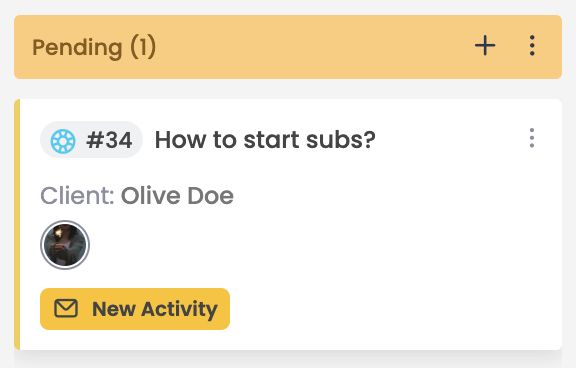
In the Kanban, By Members, and List views, tasks now display a “new activity” badge when the last message comes from the client.
Rich Text in Task Activities
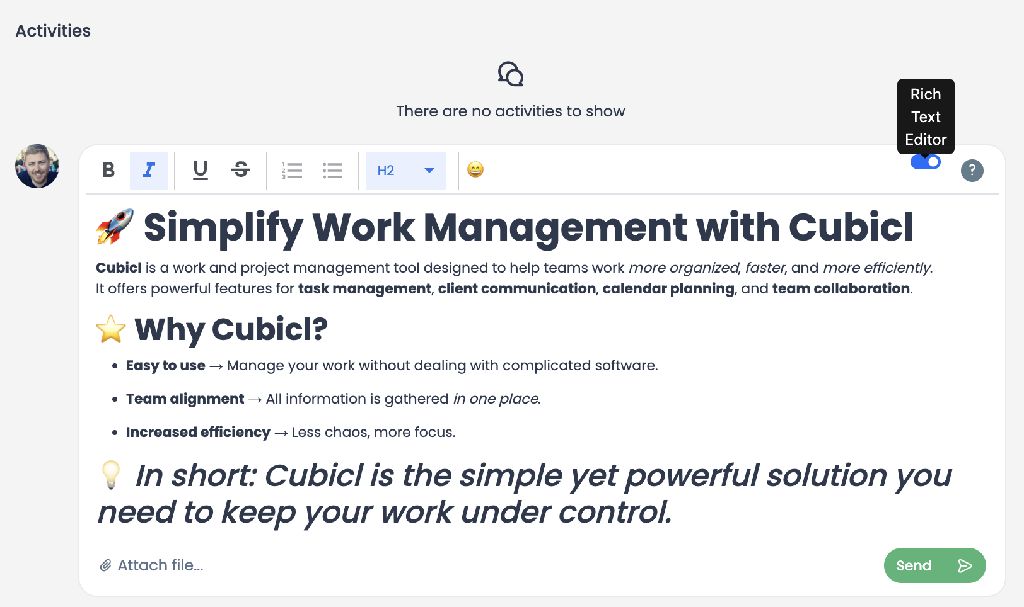
Rich text formatting, previously available only in task descriptions, is now supported in task activities as well.
Note: Email-based tasks don’t support rich formatting to avoid breaking email structure.
Switch Back to the Classic Editor
If the rich text editor feels too complex, you can easily switch back to the classic version using a toggle button located in the top-right corner.
Emoji Support in the Rich Text Editor
We added an emoji picker to the editor, making it easy to include emojis in your descriptions and activity notes.
Expanded @Mention and #Tag Support
You can now mention team members not only in task activities, but also in
-task descriptions,
-message threads,
-and customer notes.
Type “@” or “#” and choose a person using TAB or by clicking on their name.
“Task Started” Email Notification
A new notification option has been added under Profile > Email Notifications > Activity: Notify me when a task’s start date is approaching.
If Cubicl isn’t open, the notification will be sent by email.
New In-App Notifications
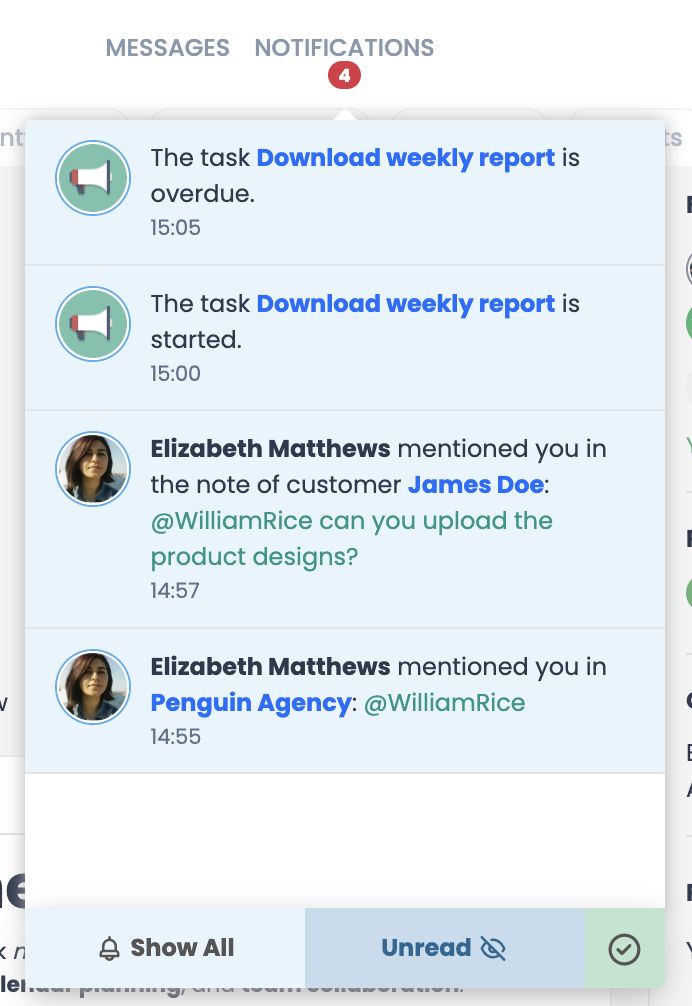
You’ll now receive in-app notifications
-when someone mentions you in a message, description, or client note,
-when a task reaches its start or end time.
Typing Indicator in Messages
You can now see when someone is typing in message threads.
New File Sorting Options
Project files can now be sorted
-A → Z,
-Z → A,
-oldest first, or
-newest first.
Improvements
- Sections filled in the task form are now marked with a green dot.
- The client field in the task form now shows the most recently added clients first.
- When the right-side panel’s auto-hide option is enabled, it now opens only when you click the button in the bottom-right, and closes when you click outside it—preventing accidental open/close behavior.
- Several dark mode issues, including incorrect emoji and selection field rendering, have been fixed.
- A bug that caused completed tasks to appear in all cells on the Time Chart has been resolved.
Follow us
If you are interested in hearing about new features in our product